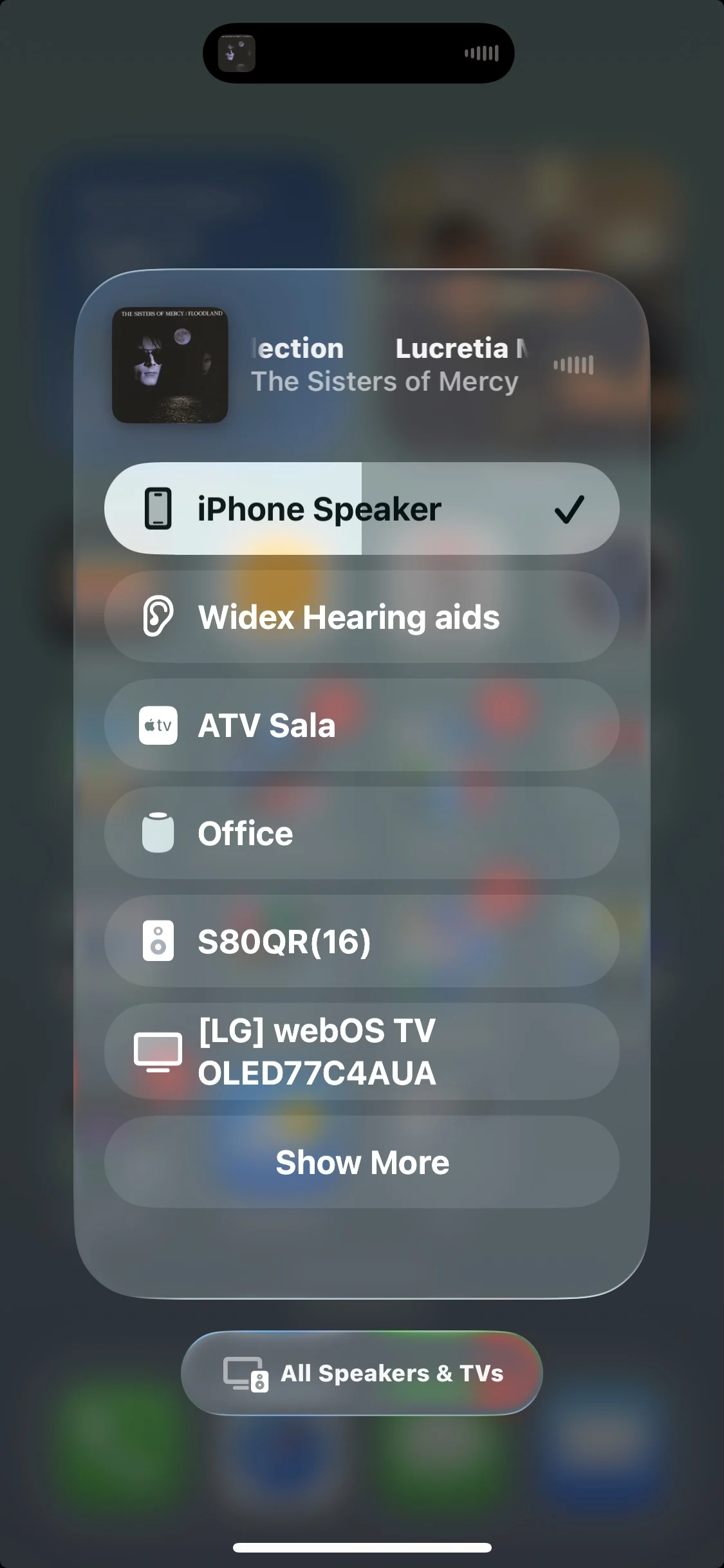
I no longer have Oticons (I sold them). I now use Widex, which is also . Since Oticon is also MFi, I assume the process is the same.
It is very simple:
(1) You pair your aids to your phone and your computer.
(2) To stream from your chosen device, simply select it from the device output list on your iPhone or Mac. One great feature is that you can control the audio from any of your Apple devices, including your Mac, iPad, Watch, and iPhone. This level of integration is exactly why I switched to Apple some years ago.
Having previously used K10s and now trying both the Jabra Pro 30 and the Philips 9050. I’ve not had any issues streaming from my MacBook Air. I do miss the ability to have the connect to both my iPhone and MacBook simultaneously. To connect to MacBook, you have to first disconnect from your phone (iPhone in my case). I do this by turning off the bluetooth connection on my phone. Then I go to the accessibility - Hearing, Hearing Devices on my Mac [System - Accessibility - Hearing, hearing devices]. Then I turn on the bluetooth on my Mac. (If your Mac’s Bluetooth is already on, cycle it off ,then beck on) If your Mac doesn’t already “see” and connect to your Oticons, you may have to turn them off and back on again (or you can put them in the charger and take them out) to put them into pairing mode. When you are through streaming from your Mac and want to connect back up to your phone, turn off Bluetooth on the computer and turn it back on on the phone - My HAs reconnect to the phone automatically - but, I have to remember to turn off the Mac’s bluetooth first. You’ll have to go through this turn off the phones bluetooth, turn on (or cycle) the Mac’s bluetooth every time you go to stream from the Mac. (It’s not difficult and I’ve found it to be reliable (as long as I remember to turn off the phone’s bluetooth first - I’m learning), but that dual booth connectivity is one feature I miss. I think the Sonova may be the only manufacturer that uses classic bluetooth and can connect to multiple devices simultaneously.
Can you link your iPhone with the Mac so calls come through on the Mac?
Yes, you absolutely can! It’s one of those “magic” ecosystem features that makes sticking with Apple feel so seamless. Apple calls this iPhone Cellular Calls, and it’s part of their “Continuity” suite.
To make this work, both devices need to be signed into the same iCloud/Apple ID and connected to the same Wi-Fi network.
How to Set It Up
You’ll need to toggle a few switches on both devices to get them talking to each other.
1. On your iPhone
Go to Settings > Apps > Phone.
Tap on Calls on Other Devices.
Toggle Allow Calls on Other Devices to ON.
Ensure your Mac is toggled ON in the list below.
2. On your Mac
Open the FaceTime app (this is the “hub” for all calls on Mac).
In the menu bar, go to FaceTime > Settings (or Preferences on older macOS) .
Check the box for Calls from iPhone.
How It Works in Practice
Once enabled, your devices will stay in sync whenever they are near each other:
Incoming Calls: When your phone rings, a notification banner will appear in the top-right corner of your Mac screen. You can click Accept to answer using your Mac’s microphone and speakers.
Outgoing Calls: You can start a call from the FaceTime app, your Contacts, or even by clicking a phone number found in Safari or Mail.
Note: Your iPhone doesn’t need to be right next to your Mac, but it does need to be on the same Wi-Fi network and relatively nearby for the handoff to stay stable.
Troubleshooting Quick Tips
Same Apple ID: Ensure both devices are signed into the exact same accou nt.
FaceTime Enabled: Both devices must have FaceTime activated (even for standard cellular voice calls).
Wi-Fi: If you’re on a public or corporate Wi-Fi with heavy firewalls, the devices might struggle to “see” each other.
That’s what I got from Gemini. Looks like I’ll be getting a Mac at some point!
For these instructions, I’ll assume that your are paired with your iPhone, and you have a Mac with a CPU greater than M1 (M1 Pro, M2+, as mentioned by @WhiteHat ).
The process is identical to selecting any speaker or headphone from your iPhone or Mac .
(1) Verify that you can stream from your iPhone (play some music).
(2) Pair the aids to your Mac:
Turn off bluetooth on your iPhone.
Turn off and on your aids (pairing mode)
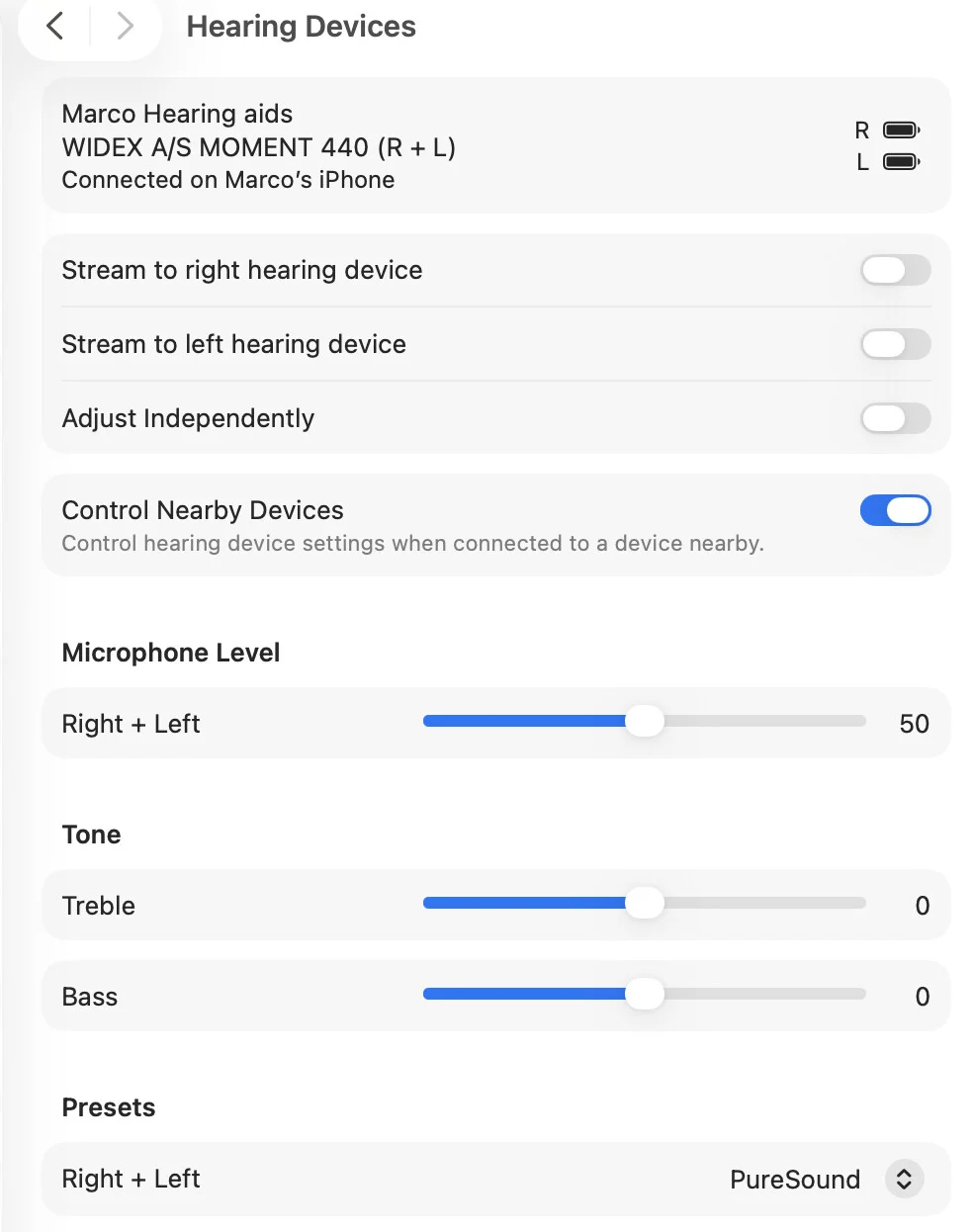
On your Mac: Settings → Accessibility → Hearing aids → Pair hearing aids. Let’s call this menu “”. Leave AAA open. AAA will say “Connected to your iPhone”
Once the pairing is complete, turn your iPhone’s bluetooth on.
(3) Let’s stream from your Mac:
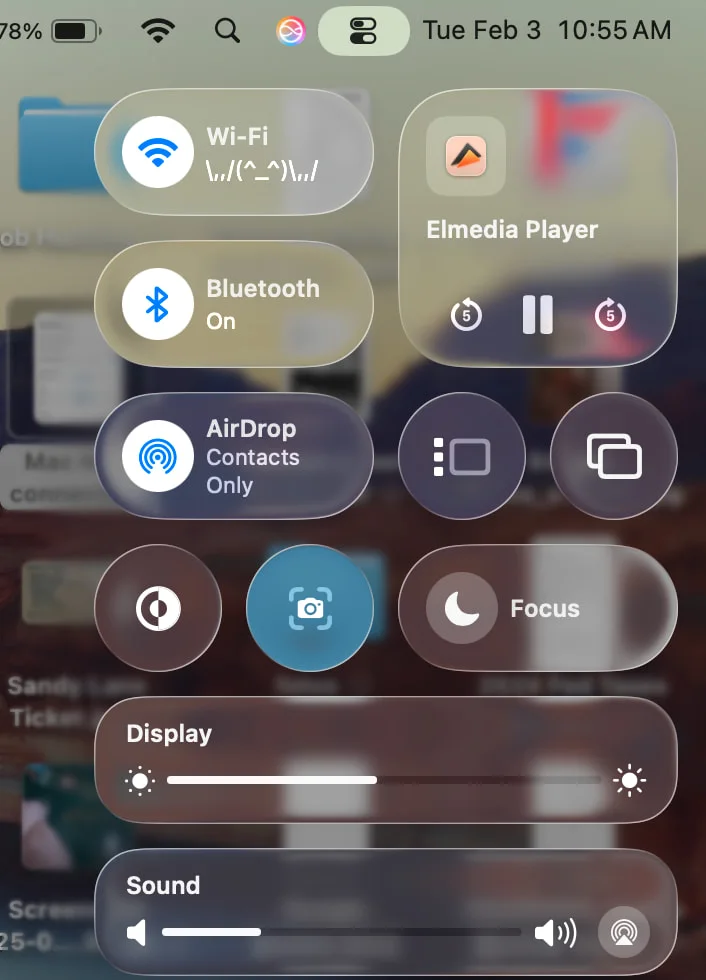
Open Control Center (located at the upper right side of your screen) (see pic below)
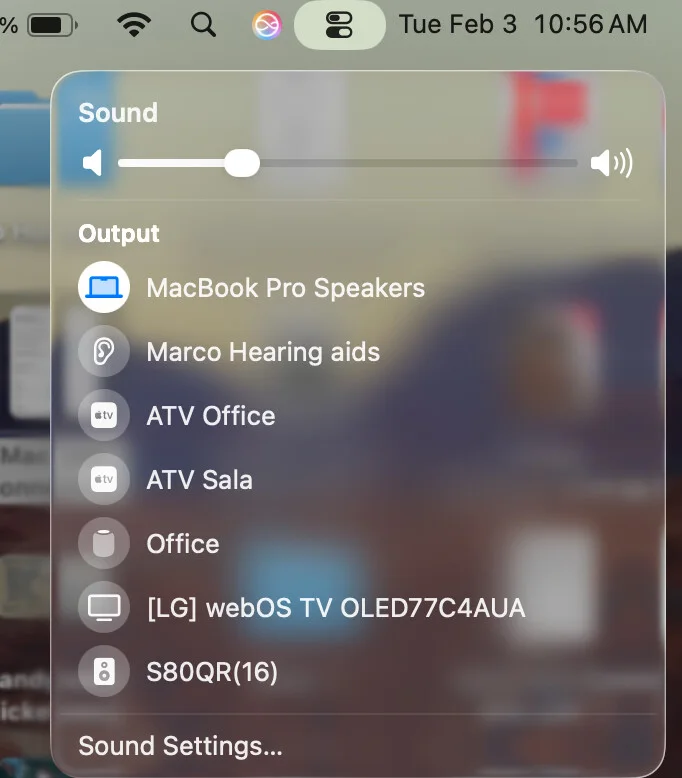
Click on the bar that says Sound, that will open the sound devices list
     Select your hearing aids
     Done - Now you can stream from your mac to your aids.
     Look at "AAA" , it will say "Connected"
If you want to stream from your iPhone now:
Play something on your iPhone
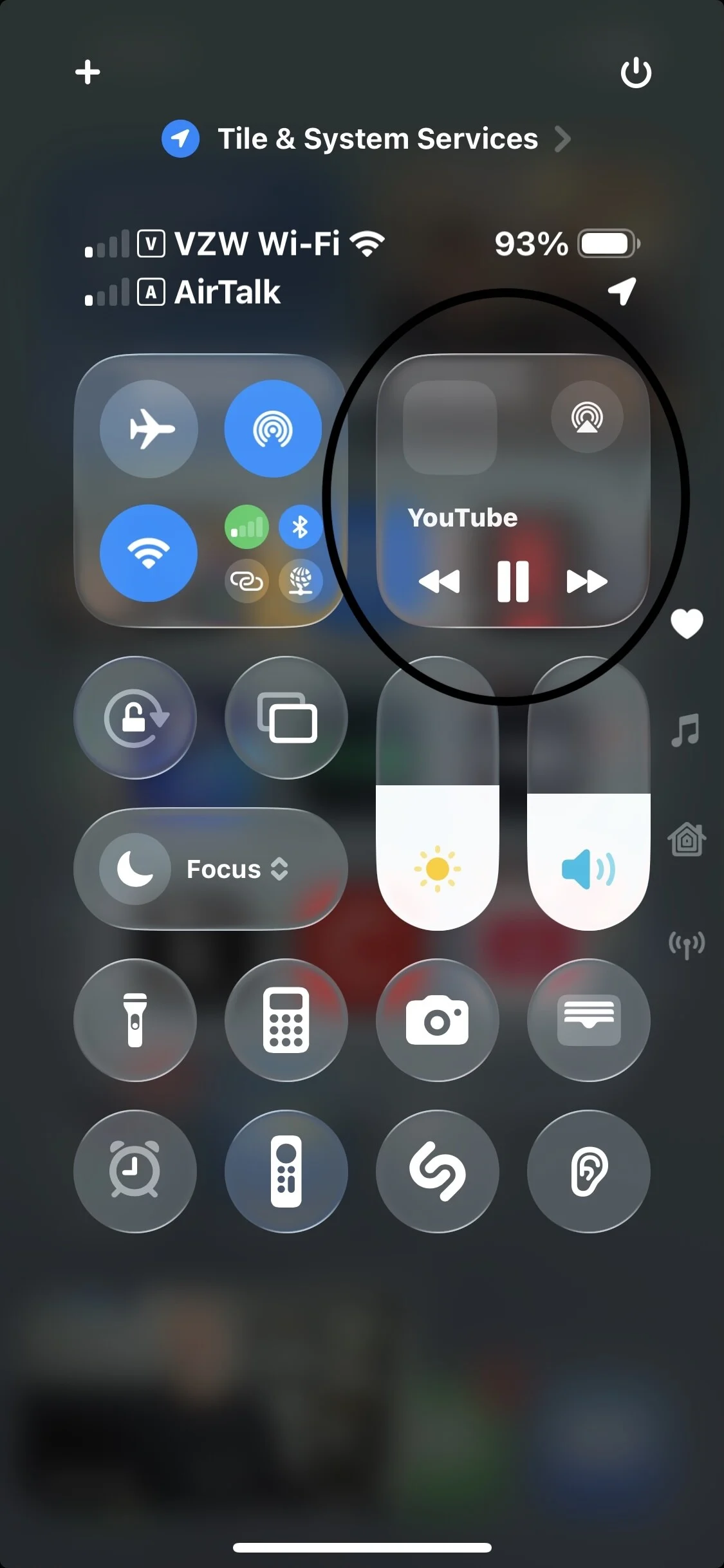
Open Control Center on your iPhone (Swipe from upper left corner of the screen)
On the Audio/Video widget, click on the antenna (Circle with a little triangle)
This will open the audio selection menu
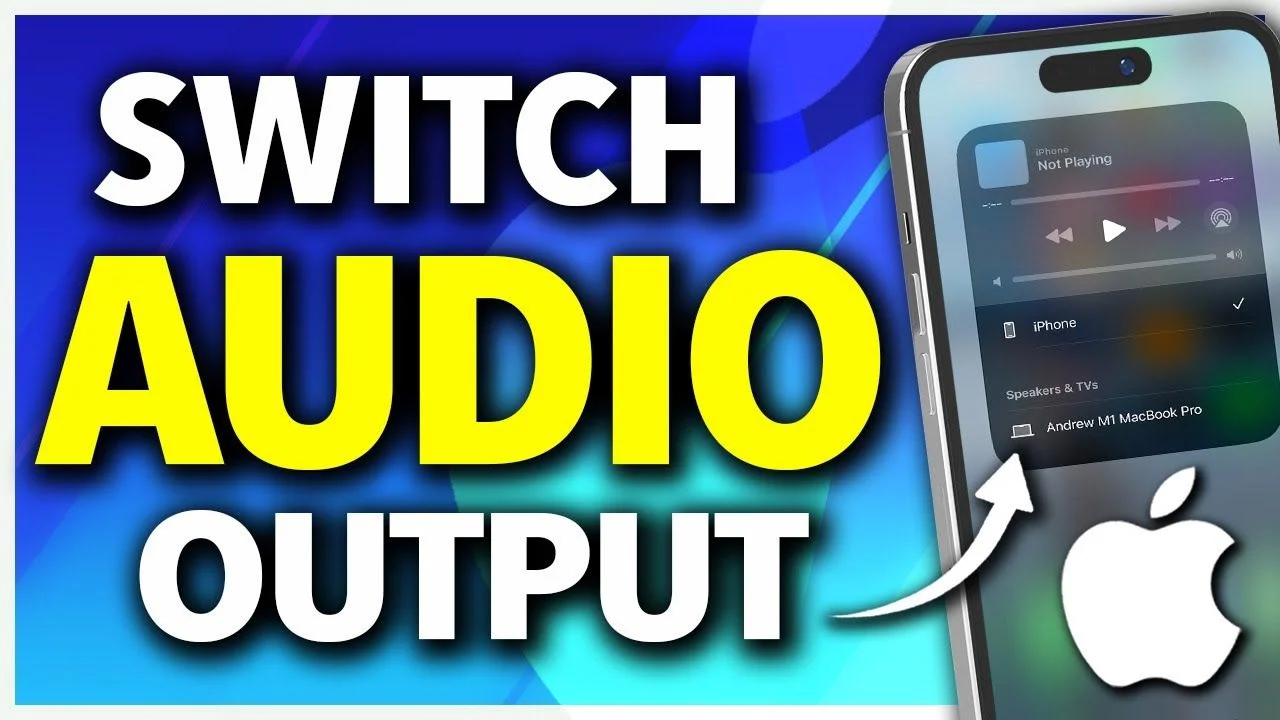
This video shows how to change the audio device on your iPhone.
Done.
No, you don’t need to turn off the bluetooth on any devices when switching.
Oh, and if you need to switch during a phone call when your aids are connected to the Mac, just click on the speaker icon and select the aids.
One of the coolest. thing is : If you are streaming from your phone to your aids, you can control the volume of the aids , switch programs, etc from your Mac (see “AAA”). For this, the “control nearby devices” must be on.
No, this response did not come from an tool. 100% handmade
Hope this helps!
Note: This process applies to hearing aids (Oticon, Starkey, Widex, Signia, Phillips, Rexton, etc). Phonak and Signia BCT switching process is different.

 London


 San Francisco