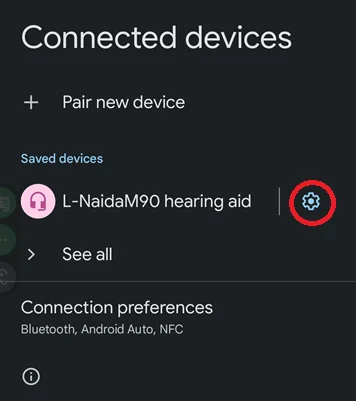
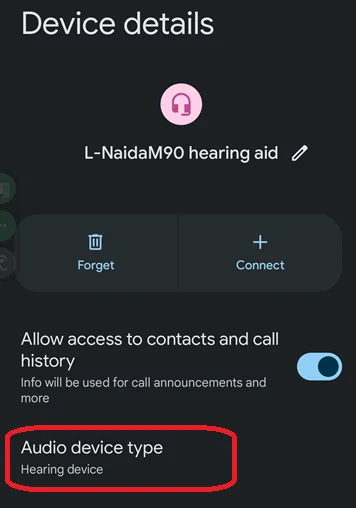
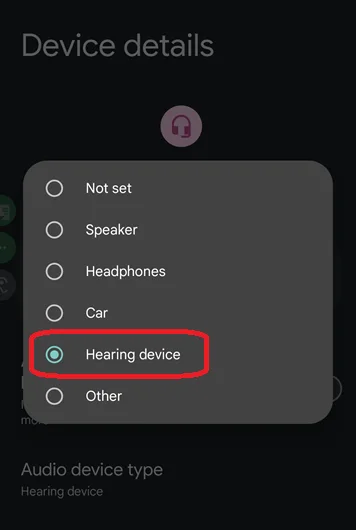
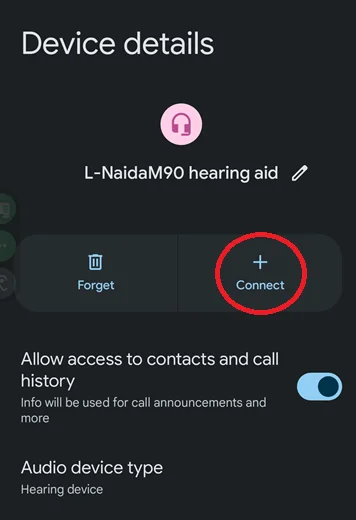
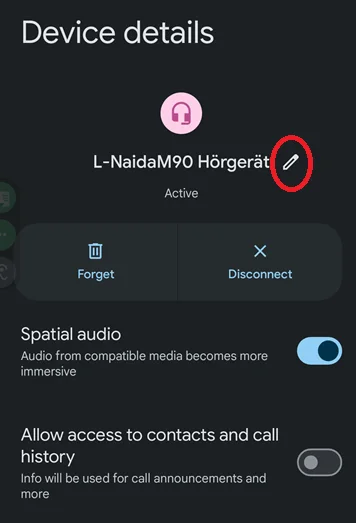
Here is the link to Phonak’s guide
Connecting Phonak hearing aids to Bluetooth on Android smartphone
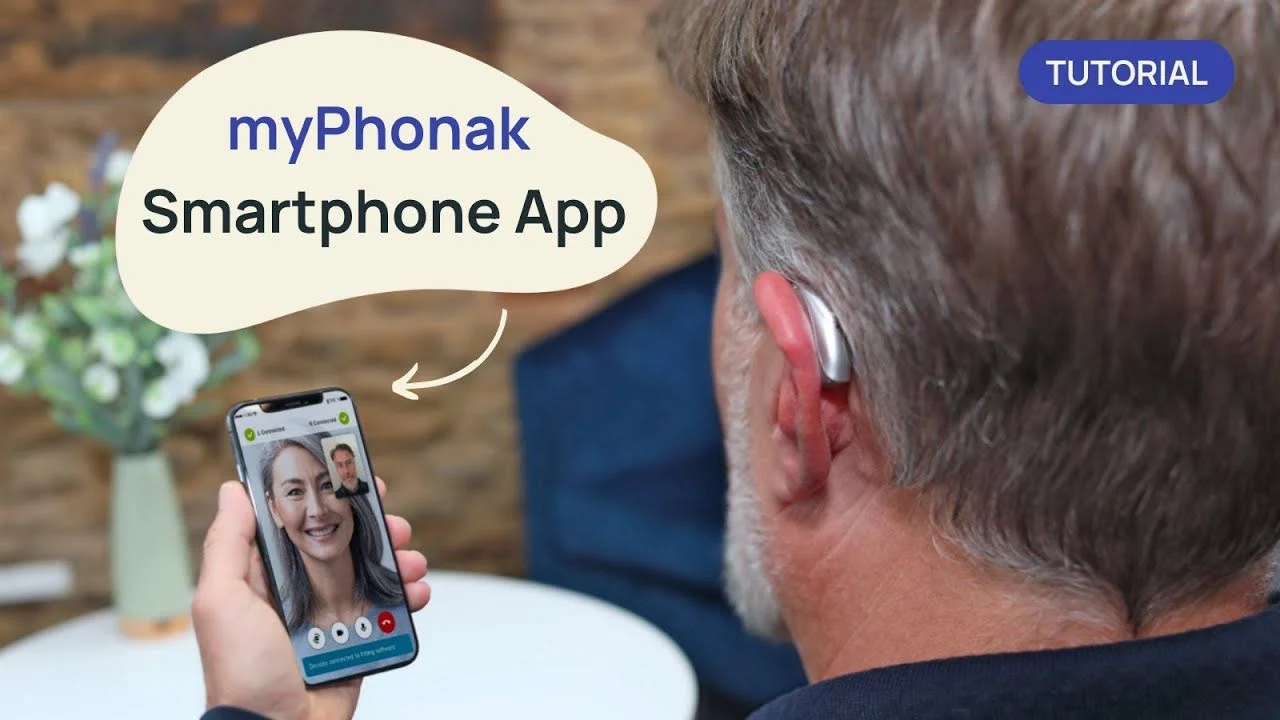
To connect Phonak hearing aids to a Pixel 9 using the myPhonak app, ensure Bluetooth is enabled on your phone, restart the hearing aids to activate pairing mode, and then follow the app’s instructions. The app will guide you through the process, including restarting your hearing aids and connecting them to the app.
Here’s a more detailed breakdown:
- Enable Bluetooth:
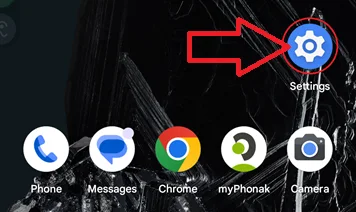
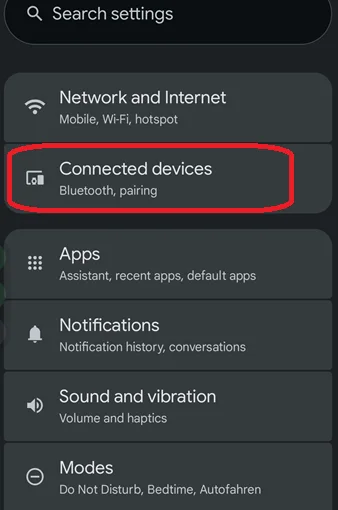
Go to your Pixel 9’s settings, find Bluetooth, and make sure it’s turned on.
- Restart Hearing Aids:
For non-rechargeable hearing aids, open and close the battery doors. For rechargeable aids, power them off and then back on (consult your hearing aid instructions for specific details).
3.Open the myPhonak App:
If you haven’t already, download and install the myPhonak app from the Google Play Store.
- Start Pairing:
Open the myPhonak app and tap “Pair device”.
- Follow App Instructions:
The app will guide you through the rest of the pairing process. This may involve selecting your hearing aids from a list, accepting Bluetooth pairing requests on your phone, and potentially restarting your hearing aids again.
- Complete the Process:
Once paired, the app will confirm the successful connection and may offer optional settings for phone calls and streaming.
Troubleshooting:
Location Services:
Ensure location services are enabled for the myPhonak app during the initial pairing process.
internet Connection:
Make sure your phone is connected to the internet (Wi-Fi or cellular data) during pairing.
Multiple Devices:
If you have two hearing aids, ensure both are powered on and visible to the app during pairing.
Bluetooth Menu:
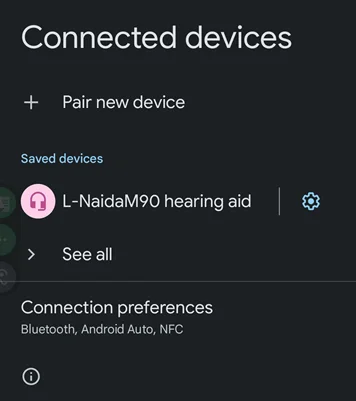
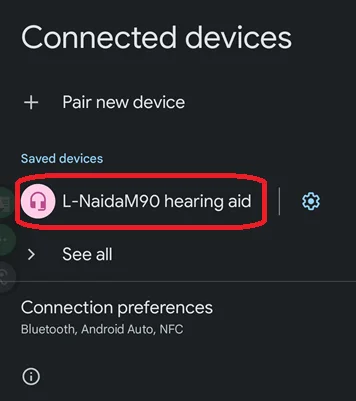
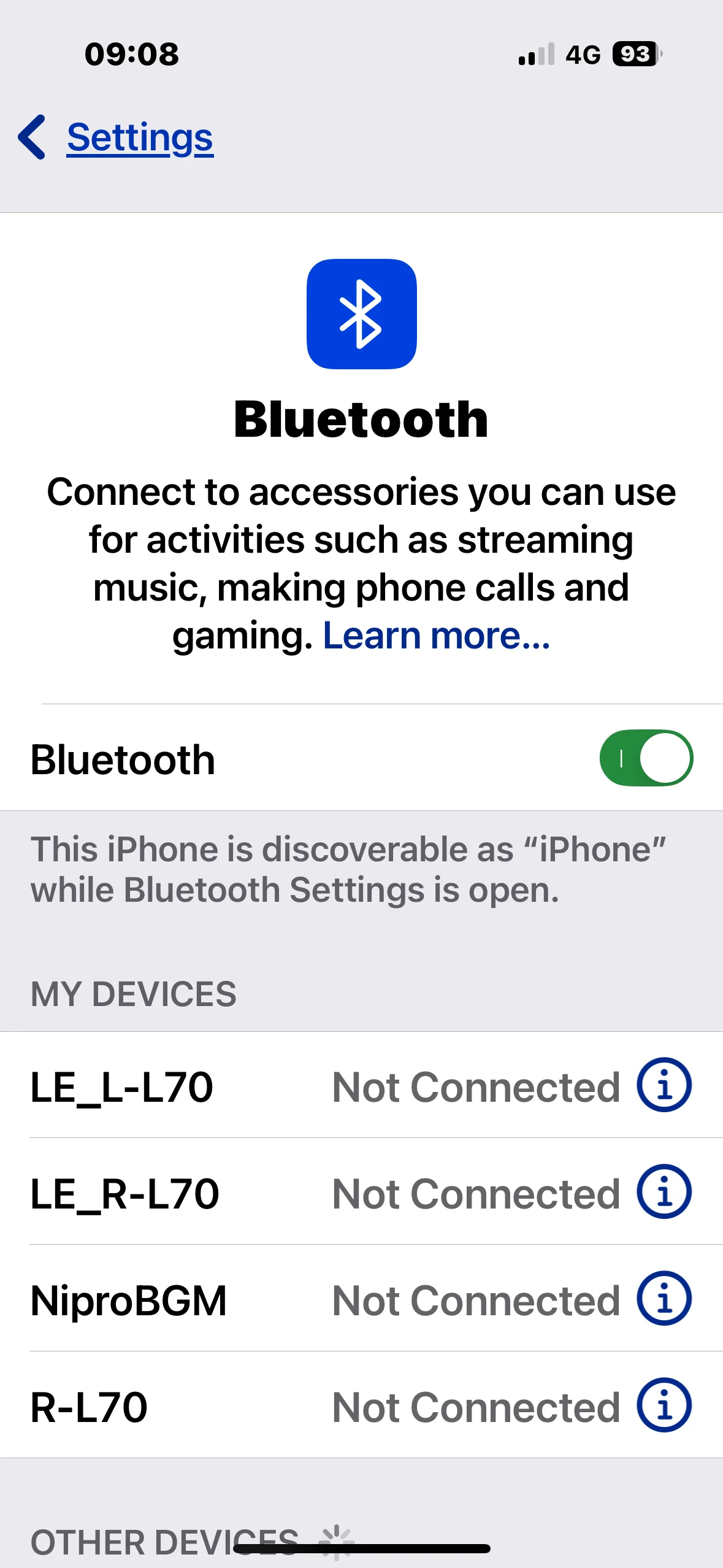
You may see additional Bluetooth connections in your phone’s settings starting with “LE_” which are used by the app.
Re-Pairing:
If you encounter issues, try unpairing and re-pairing your hearing aids.
Software Updates:
Ensure your Pixel 9 is running the latest Android version and that the myPhonak app is up to date







 Texas Hill Country
 North West UK