
Is it possible to mute the top mics and leave the front ones on the More 1 as a program?
You’re ignoring this member’s posts.
This topic is closed.
5 replies1.3k viewsLast reply
Is it possible to mute the top mics and leave the front ones on the More 1 as a program?
You’re ignoring this member’s posts.

What is the top mic? Are you implying that this is the mic that picks up sound from the rear?
And what is the front mic? Is it supposed to be picking up sound from the rear?
And what are you trying to do here? Just pick up sound from the front but block sound from the sides and the rear?
You’re ignoring this member’s posts.
Yes trying to listen to people I’m facing and cut down background noise. The noise app doesn’t do that for me anyway.
You’re ignoring this member’s posts.
Which noise app are you talking about? The MoreSound Booster option in the ON app? That’s probably about the most aggressive forward beam forming setting you can get from the More. If you find it not helpful, maybe you can have your create a custom program for you. Or are you a ’er since you seem to be asking pretty direct questions here?
Either you (if DIY) or your HCP can create a new program in Genie 2 and use the built-in Speech-in-Noise program as a starter. Then make sure that the Neural Noise Suppression is set to the max value if not already. Also change the Directionality Setting to Full Directional value, which is what you’re asking about, getting the mics to do front beam forming. If still not helpful, your HCP can start making more adjustment in the Fine Tuning section to experiment.
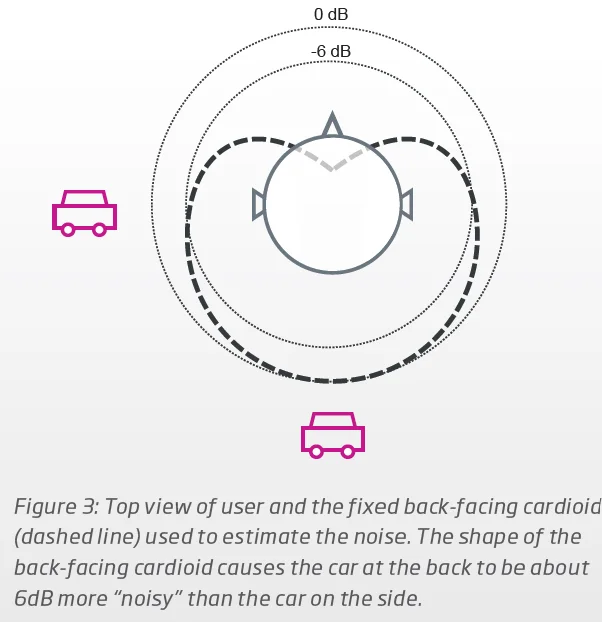
By the way, it’s not like one mic on the is front facing and the other mic is rear facing, and you can simply turn off the rear and leave the front facing mic ON like you think (as apparent in your original question). It’s not that simple. The hearing aid applies beam forming algorithm on the two mics on each aid to create 2 fixed acoustical “views” of the environment. One is an omnidirectional 360 degrees view and the other is a back-facing cardioid beam view. Then the system manipulates these 2 views to decide how to beam form, depending on the setting that you select for the directionality. Below is a screenshot showing what the back-facing cardioid pattern looks like (the dashed line) compared to the all-around 360 degree omnidirectional pattern (the circles).
You’re ignoring this member’s posts.
This is a great diagram, @Volusiano . Do you have a link for downloading it and any similar information. I think many of us have always wondered (and never fully understand) the default beam forms and how individual settings in the Genie software customize the beam forms.
Thanks!
You’re ignoring this member’s posts.
The whitepapers can be found on the Oticon website. If you google Oticon whitepapers, you’ll get this link, and you can browse through all the whitepapers they have.
Literature & Video Download Center | Oticon42
Find videos, white papers, guides and other instructions on how to use all Oticon hearing aids and hearing aid accessories.
You’re ignoring this member’s posts.
Hearing Aids16 replies
Hearing Aids3 replies
Hearing Aids9 replies
Fitting Software Requests1.1k replies
Uncategorized451 replies