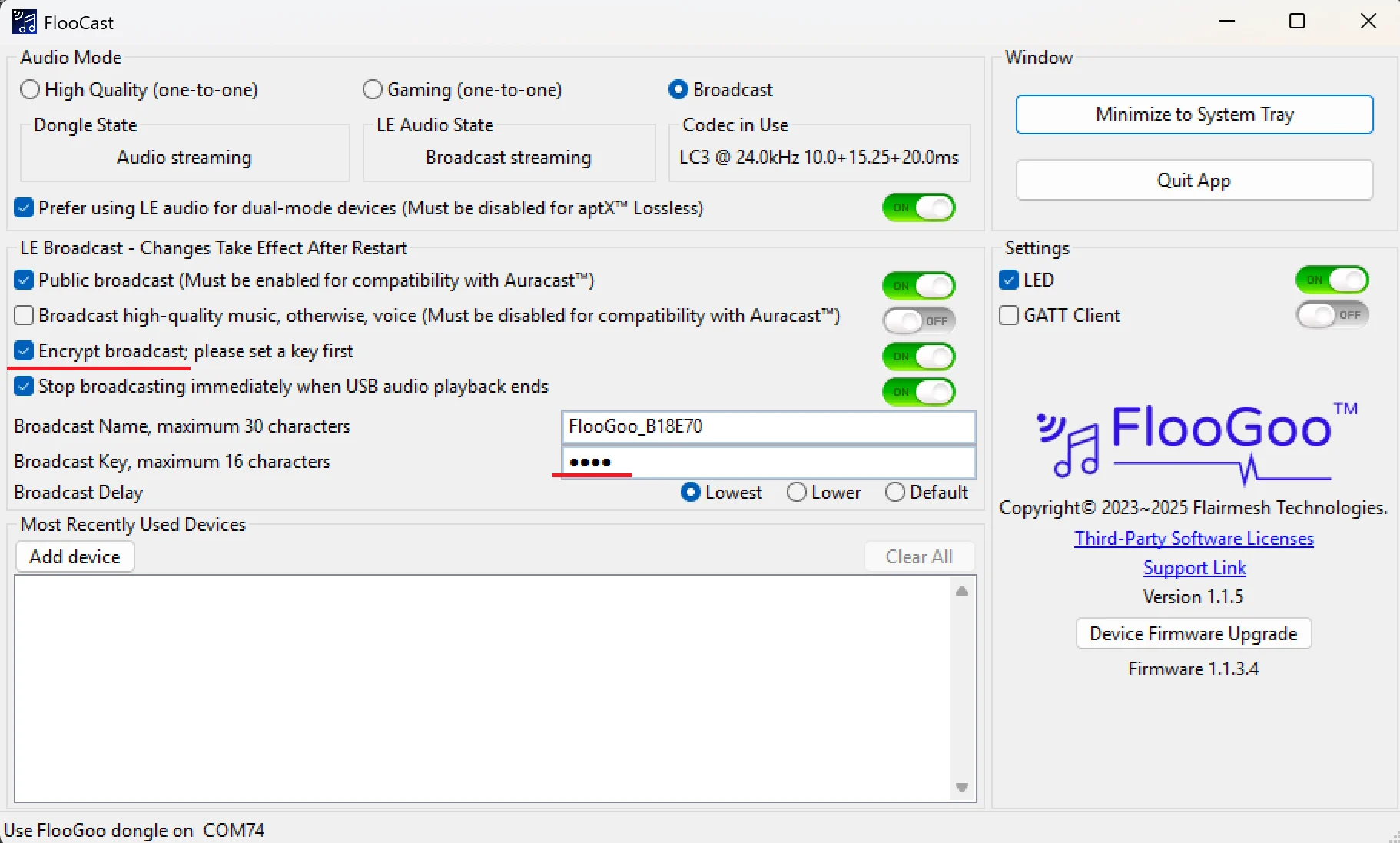
To set the key, enter it first and press ENTER, then enable the “Encrypt broadcast” option. Afterward, unplug and replug the FMA120 for the changes to take effect.
We will soon release a new firmware that applies these changes immediately—without needing to replug the device. This update will also include other improvements, such as adjustable broadcast latency. The app will display the current effective latency in the “Codec in Use” panel.
If you’re using a Samsung phone to set up the broadcast for your hearing aids, try using a 4-character PIN. The spec allows up to 16 characters, but some phones limit it to 4 and pad the rest with zeros.
Or, could you provide more details about the issue? For example, is there no PIN prompt after selecting the broadcast, or does the PIN dialog appear but the connection fails after entering the code?
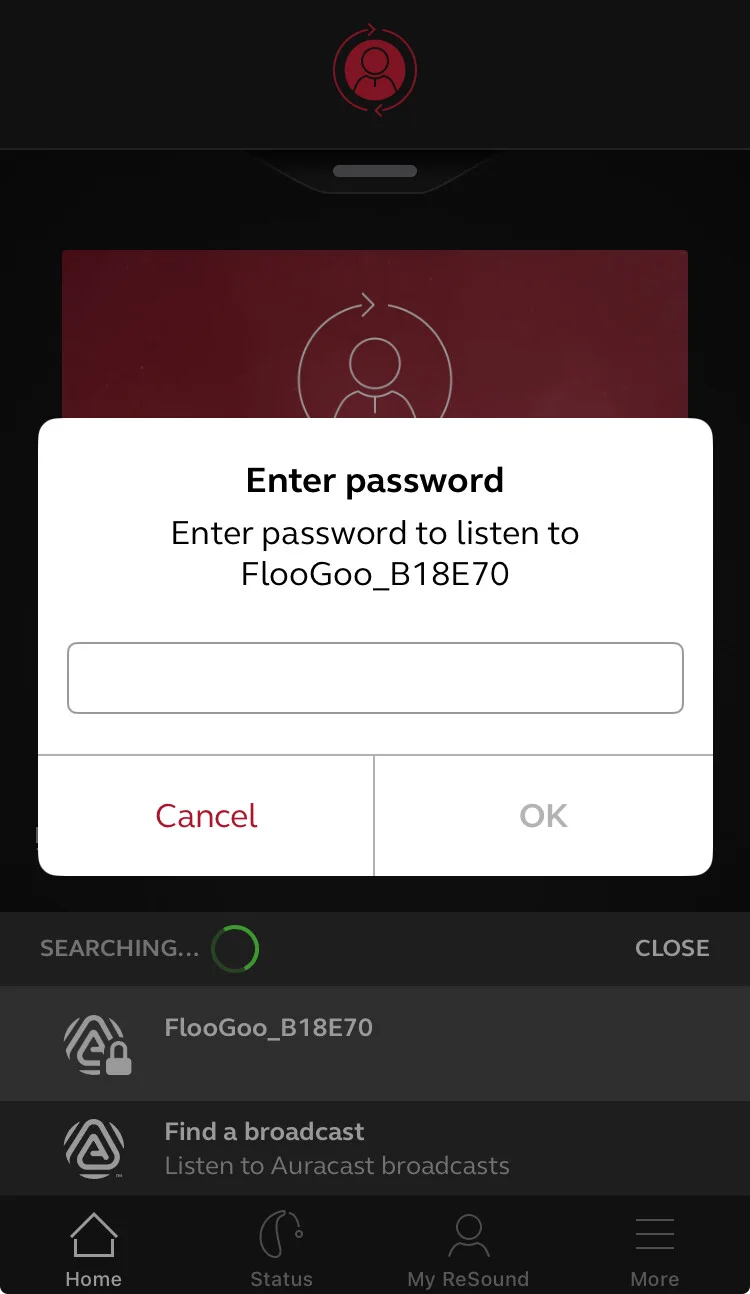
Here’s a screenshot from an iPhone paired with Nexia 9 hearing aids. When encryption is enabled, the detected broadcast will be marked with a lock icon.
Please also review the settings in FlooCast. You can ignore any options not yet available in the screenshots, but make sure to check the two settings highlighted with red lines.
The PIN cannot be retrieved from the dongle, so there’s no need to worry if it is lost. Disabling the “Encrypt broadcast” option will turn off encryption but will not remove the saved PIN. If an FMA120 is relocated to a public venue, the user can set a dummy PIN (e.g., 0000) and disable “Encrypt broadcast” to ensure no personal information is exposed.
We’ve released a new stable firmware (v1.1.43) that resolves compatibility issues with Linux’s pulseaudio in broadcast mode.
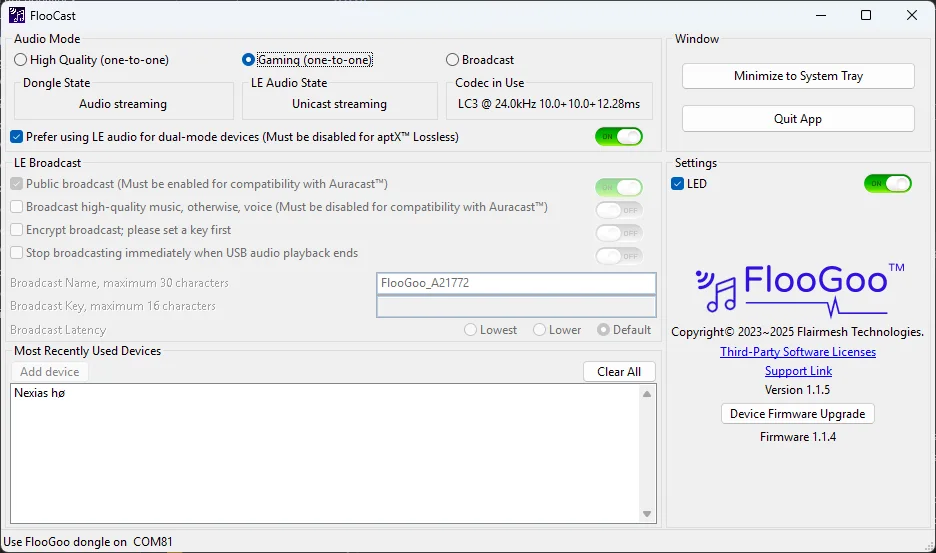
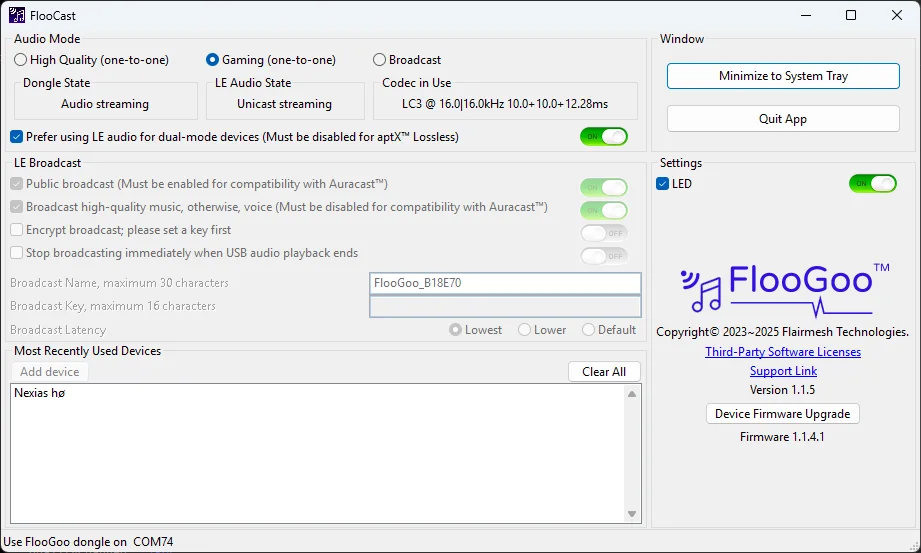
This update also brings several improvements to displaying and adjusting latencies in /. For example, as shown in the screenshot below, a low latency of just 32.28 ms can be achieved in Gaming mode with Nexia 9 hearing aids.
As far as I know, Starkey users should also benefit from this improvement in the next firmware update.
That’s great, thank you very much! Unfortunately I left my FMA120 at my workplace and I’m out of the office until the week of Aug 25, so it will be a while until I can test it!
Has anyone experienced sudden static while using the device? There are no seemingly causal events, but this morning, as an example, streaming radio to the FMA 120, through my Philips 9050 aids - sudden deafening static. When I turn off the 120, static ends, and when I turn it on in 15-30 seconds, everything is back to normal with normal streaming. This has happened 5 times in the last hour or so.
I have Windows 11Pro updated on my PC system.
The addition of latency is fantastic! A few questions if you’re able to share:
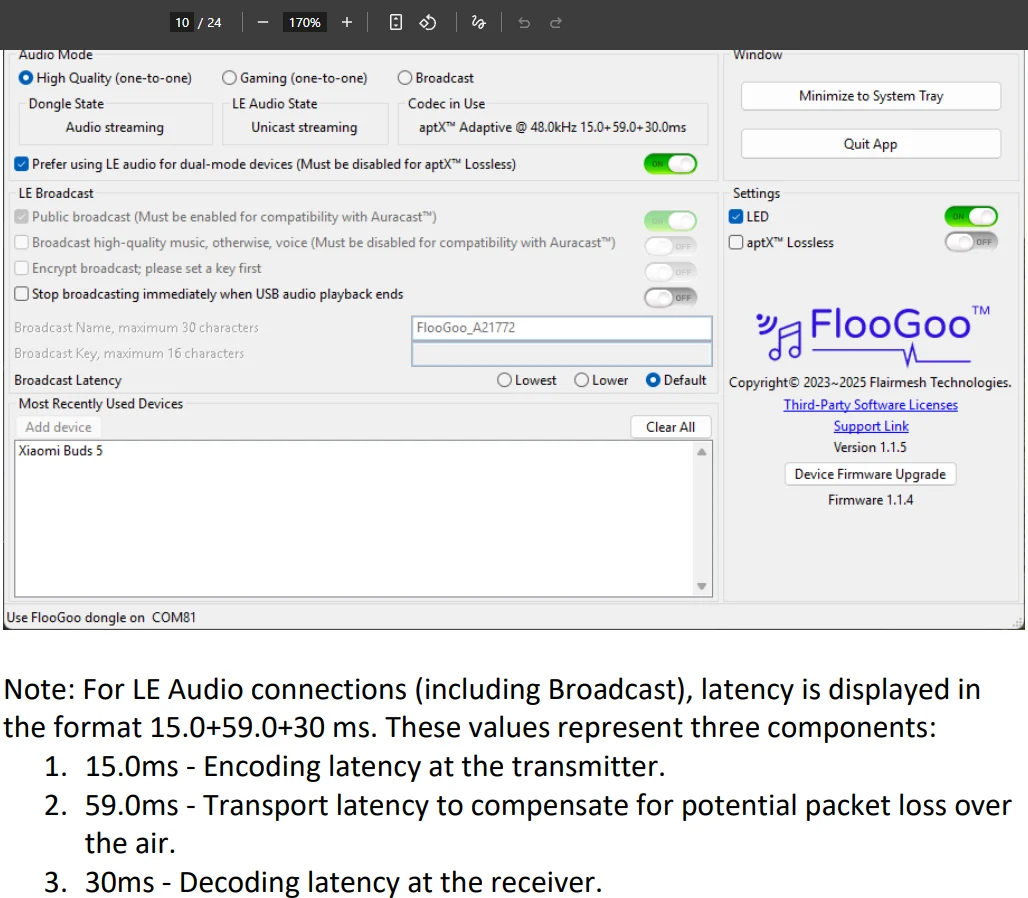
When testing against a few devices, it looks like there are consistently three components to the latency information shared, for which the total latency is the sum. What do each of these three components represent?
In testing, I noticed that the latency isn’t displayed in High Quality mode as well as Gaming mode when using bidirectional (voice). Are there limitations to displaying latency here? And if not, are there plans to add latency information here too? (I’m mostly curious to see how quality changes impact latency and also to ensure that latency when using voice is optimized)
I’m also excited to see there being good progress on a new USB-C version–that will be a instant purchase for me when it launches!
The numbers are explained in the latest user manual. We list them separately to make it clearer for users how the total latency is determined by different modes, and which portions are contributed by each end.
In the manual’s example, the codec shown is a Qualcomm proprietary format called “aptX Adaptive,” which is simply another codec used in place of the standard . For hearing aid users, the display will always show something like “LC3 @ 24 kHz xx+yy+zz ms.” The fundamentals of latency calculation are the same across different codecs used in , so the same definitions apply.
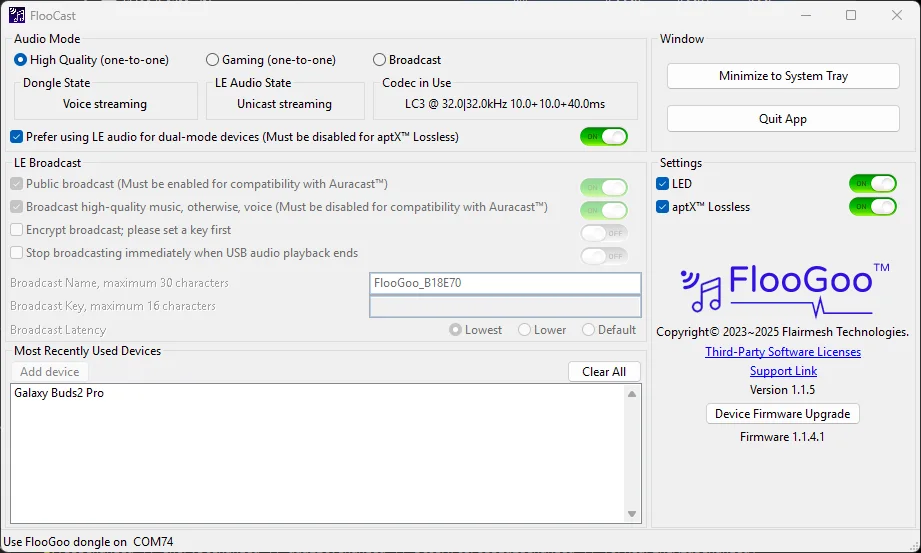
Regarding the issue where latency is not displayed when the microphone is enabled, could you please provide the exact model name of your device? We have tested with ReSound Nexia 9, Starkey Edge , and several other LE Audio earbuds, and the latency indicators have worked correctly. When the microphone is enabled, two sample rate values are shown — one for the speaker and one for the microphone.
For reference, here is a screenshot showing a Samsung Buds 2 Pro in High Quality mode and a ReSound Nexia 9 in Gaming mode. (Note: you may need to extend the width of the Windows window to ensure the full string in “Codec in Use” is displayed.)
We plan to release the USB-C version (which also includes a 3.5 mm input for use with TVs) in approximately 30–45 days. It will offer all the same functions as the FMA120, with the added interfaces making it a more universal adapter for different sources.
On Windows, the volume of connected hearing aids can be adjusted using the standard Windows volume slider. If this doesn’t work, please share the detailed model name of your hearing aids.
The new model does not have any physical volume control buttons. When using USB-C as the audio input source, it functions the same as the FMA120, so the Windows volume slider can be used. When using the 3.5 mm input, you can adjust the volume on your audio source device (such as your TV or PC).
On Windows, the volume of connected hearing aids can be adjusted using the standard Windows volume slider. If this doesn’t work, please share the detailed model name of your hearing aids.
My hearing aids are the Jabra Enhance Pro 30 Micro.
Are you using the FMA120 in Broadcast mode with the Jabra, and configuring the broadcast through a Jabra mobile app similar to ReSound’s Smart 3D? If so, you’ll need to use the volume controls in the mobile app to adjust the volume.
The Windows/PC volume slider only works when the hearing aids are directly paired with the FMA120. It will not work if the dongle is operating as an independent transmitter, since in that mode it doesn’t actually know whether a device is listening.
When operating in point-to-point mode with an device connected, the Windows volume slider is translated by the FMA120 into a digital volume control command, which the dongle then sends to the device. The device itself adjusts the volume — in other words, the FMA120 does not alter the audio signal amplitude. For example, with a ReSound Nexia 9 (similar to the Jabra Enhance Pro 20), moving the Windows slider to 0 will completely mute playback.
Audio playback applications (such as the volume slider in a YouTube video) can also adjust the playback volume at the source. In this case as well, the FMA120 does not alter the signal amplitude, since the volume has already been adjusted before the signal reaches the dongle.
Are you using the FMA120 in Broadcast mode with the Jabra, and configuring the broadcast through a Jabra mobile app similar to ReSound’s Smart 3D? If so, you’ll need to use the volume controls in the mobile app to adjust the volume.
The Windows/PC volume slider only works when the hearing aids are directly paired with the FMA120. It will not work if the dongle is operating as an independent Auracast transmitter, since in that mode it doesn’t actually know whether a device is listening.
Thank you for the explanation. That is exactly what I am doing, using the Jabra mobile app. I just can’t get the volume to go as low as needed, especially with voices.
Thank you! I put on a sermon from my church on YouTube, and was able to lower it sufficiently there in YouTube. Problem solved! Many thanks for your time.
As more users have asked us for guidance on church audio setup, we’ve created a dedicated guide specifically for this use case.
Here are the key points of the setup:
In a typical church, the sound board connects and mixes multiple microphones (wired or wireless) along with inputs from other devices.
The main output from the sound board (usually via an XLR connector) can be sent to a PC for recording or monitoring. This can be done with an XLR-to-USB cable, or — if available — through the so…
We’ve added an ™ microphone feature to the FMA120 via our new mobile apps. You don’t need a standalone Auracast mic—just plug the FMA120 into your phone and start broadcasting with a tap.
Many users have requested an Auracast™ microphone solution. We’ve released an iOS and Android app that lets you broadcast your voice by simply plugging in the FlooGoo FMA120 and tapping a single button.
[IMG_58A19E6EF211-1]




 Puyallup, WA State
![[IMG_58A19E6EF211-1]](/uploads/original/0c119bf425ef28c6fceadd4de47ba4003a336120.jpeg)